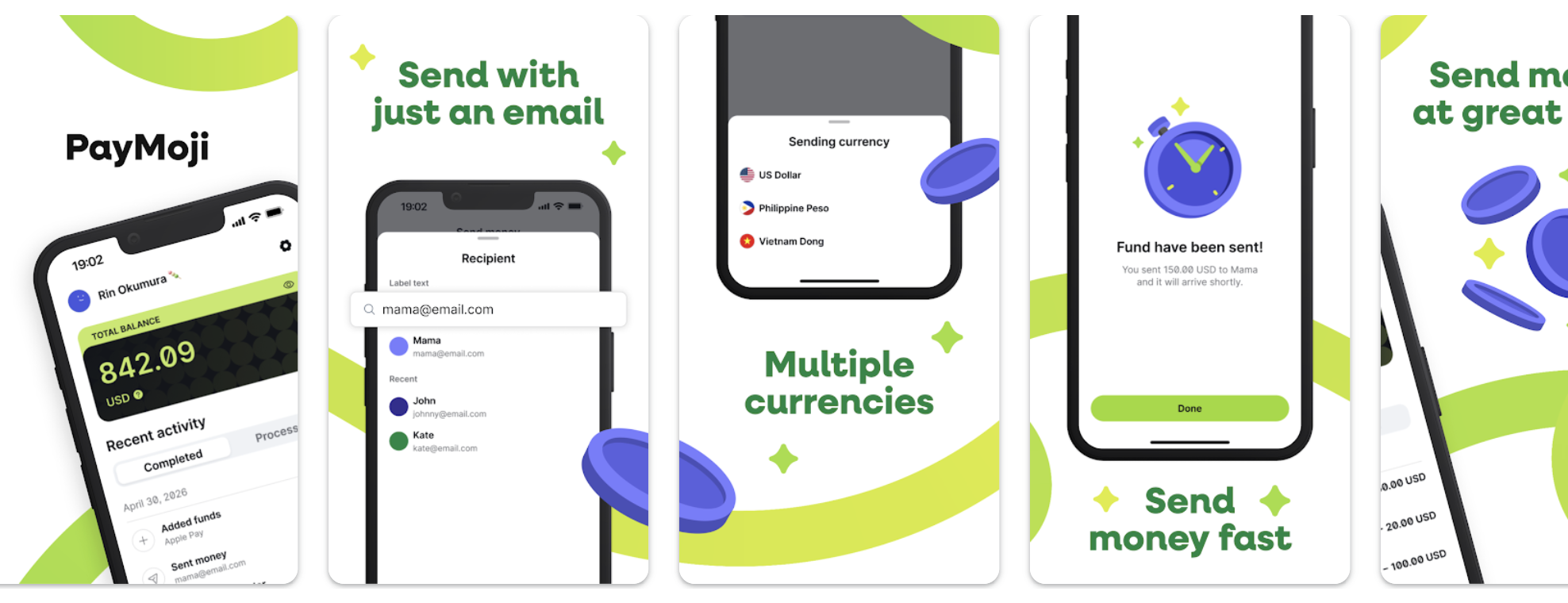
PayMoji is an international money app by Sky Mavis that brings transfers and payments together in one place. From a single app, you can send money worldwide in seconds, transfer funds, and make payments via QR code across different countries.
Pay family back home, settle bills, or scan your favorite merchant's QR code. PayMoji handles it all with transparent pricing, no hidden fees, and live exchange rates shown upfront.
This article walks you through everything you need to get up and running.
🔎 How PayMoji Works
PayMoji holds your funds in USD, the standard currency for international transfers. This makes it simple to send money to anyone, anywhere, no matter their local currency.
When you transfer funds to a bank account or e-wallet, your USD balance is automatically converted to the destination's local currency at the current exchange rate. You'll always see the exact amount the recipient will get before confirming the transfer.
See: Understanding PayMoji Transactions for the full breakdown of how transfers work.
System Requirements
For the best experience, make sure your device meets the minimum requirements:
| Platform | Requirement |
| iOS (iPhone / iPad) | iOS 16.0 or later |
| Android | Compatible with most modern Android devices |
PayMoji is free to download on both the App Store and Google Play.
Not sure if PayMoji works in your country? See: Supported Regions and Payment Methods for the full list of regions, banks, and e-wallets we support.
Get Started
Start using PayMoji for sending and receiving money in just a few quick steps!
Step 1. Download the App
iOS:
- Open the App Store on your iPhone or iPad.
- Search for "PayMoji" or tap this link.
- Tap Get to download and install.
Android:
- Open Google Play on your Android device.
- Search for "PayMoji" or tap this link.
- Tap Install.
Step 2. Create Your Account
- Open PayMoji after installation.
- Tap your preferred sign up option
- Continue with Email
- Apple
- Enter your email address, or sign in via the Google or Apple prompts.
- Verify your identity with the code sent to your email.
Didn't receive the verification code? Check your spam/junk folder. If not found, tap Resend. - Once successfully logged in, you will be prompted to:
- Enable biometric login (Face ID / fingerprint)
- Turn on Notifications to get instant alerts for changes to your account.
- Enable biometric login (Face ID / fingerprint)
Step 3. Verify Your Identity
To unlock full access to PayMoji's features, you will need to verify your identity. The process is quick, takes about 2 minutes, and helps secure your account while complying with financial regulations.
See: Identity Verification in PayMoji for the full step-by-step guide.
Step 4. Add Funds
Once verified, you can start requesting funds to your wallet or add funds yourself.
See: Adding Funds to Your PayMoji Balance for all available deposit methods and steps.
Step 5. You're Ready to Send!
With your account set up, you can now send money internationally in seconds! Choose how you want to send:
You can also view live exchange rates before confirming any transfer, and track those transfers in real time.
See: PayMoji Features for a full breakdown of what you can do in the app.
Keep Your Account Secure
Now that you're set up, take a moment to review our security best practices. PayMoji puts you in control of your funds, so a few simple habits go a long way toward keeping your account safe.
See: Keeping Your PayMoji Account Secure for essential security guidelines.
Reach out to our support specialists!
Our team will get back to you as soon as possible.